
Skip to content

Cost tracking inside Bitrix24

You see your sales in Bitrix24. But how much do you earn?

Track expenses and see the margin on every deal!

Leads, Deals, tasks, and projects — one complete view of costs
Smiling businessman pointing at a calculator
OUR SOLUTION

All your costs in Bitrix24

Three cost types, tracked where your team works, and calculated automatically
01Cost types

Expenses and fees

Add expenses, fees and sales comissions from the catalog to any CRM item in Bitriz24: a deal, lead, invoice, or smart process.

Keep typical costs — delivery, commissions, subcontractors, travel — in one catalog, so the whole team records them the same way every time.
Learn more →
01Cost types
Expenses and fees
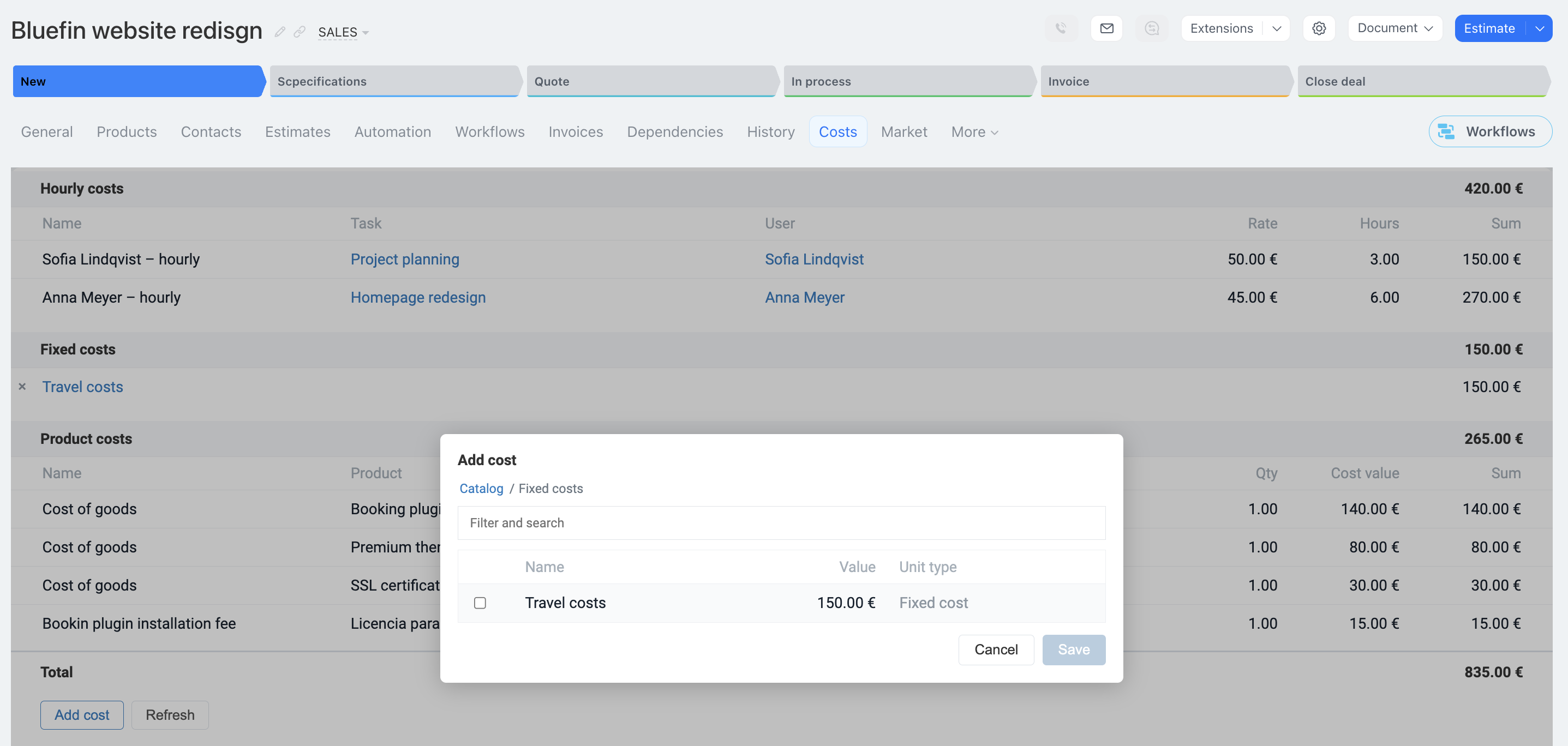
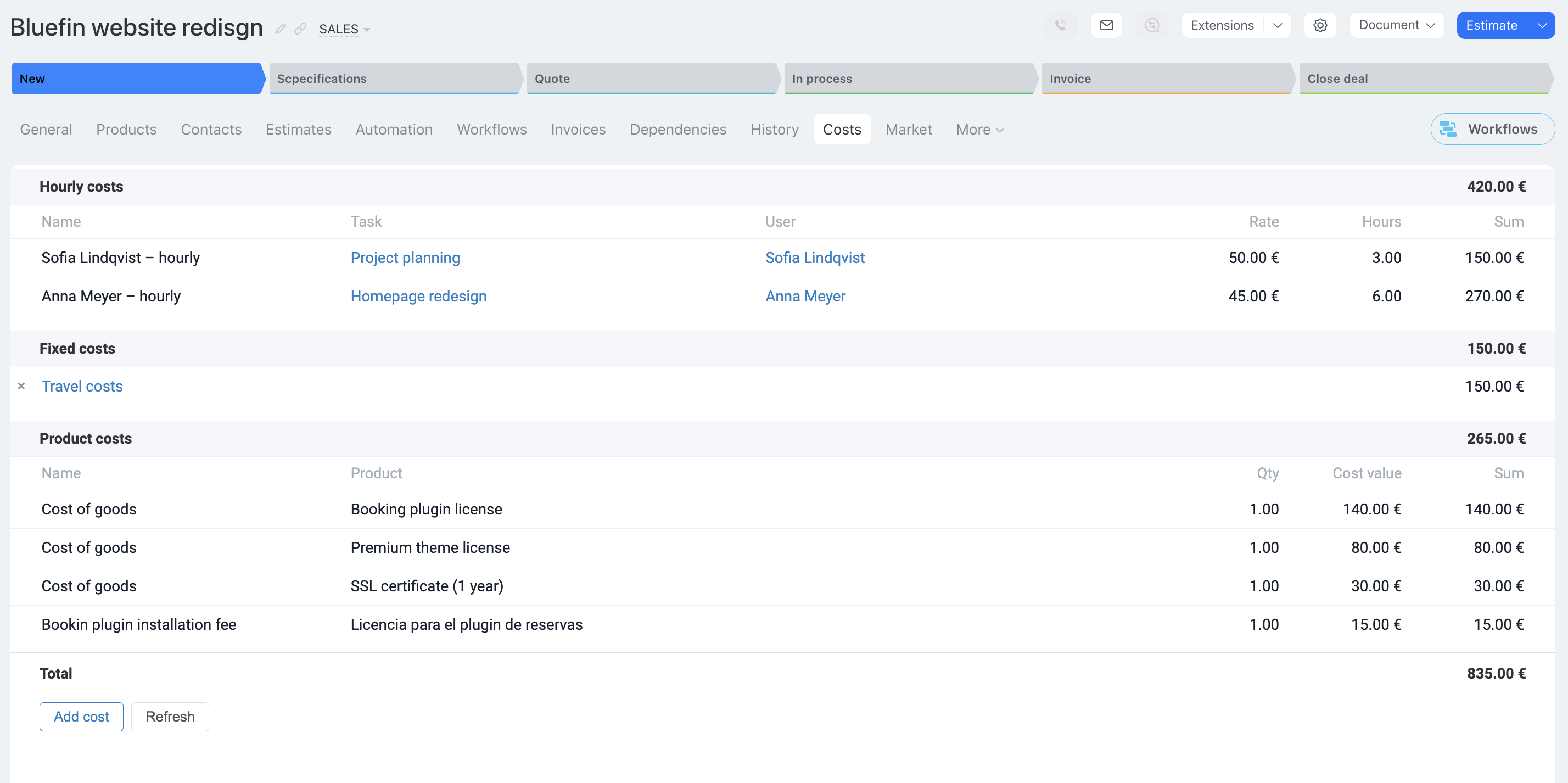
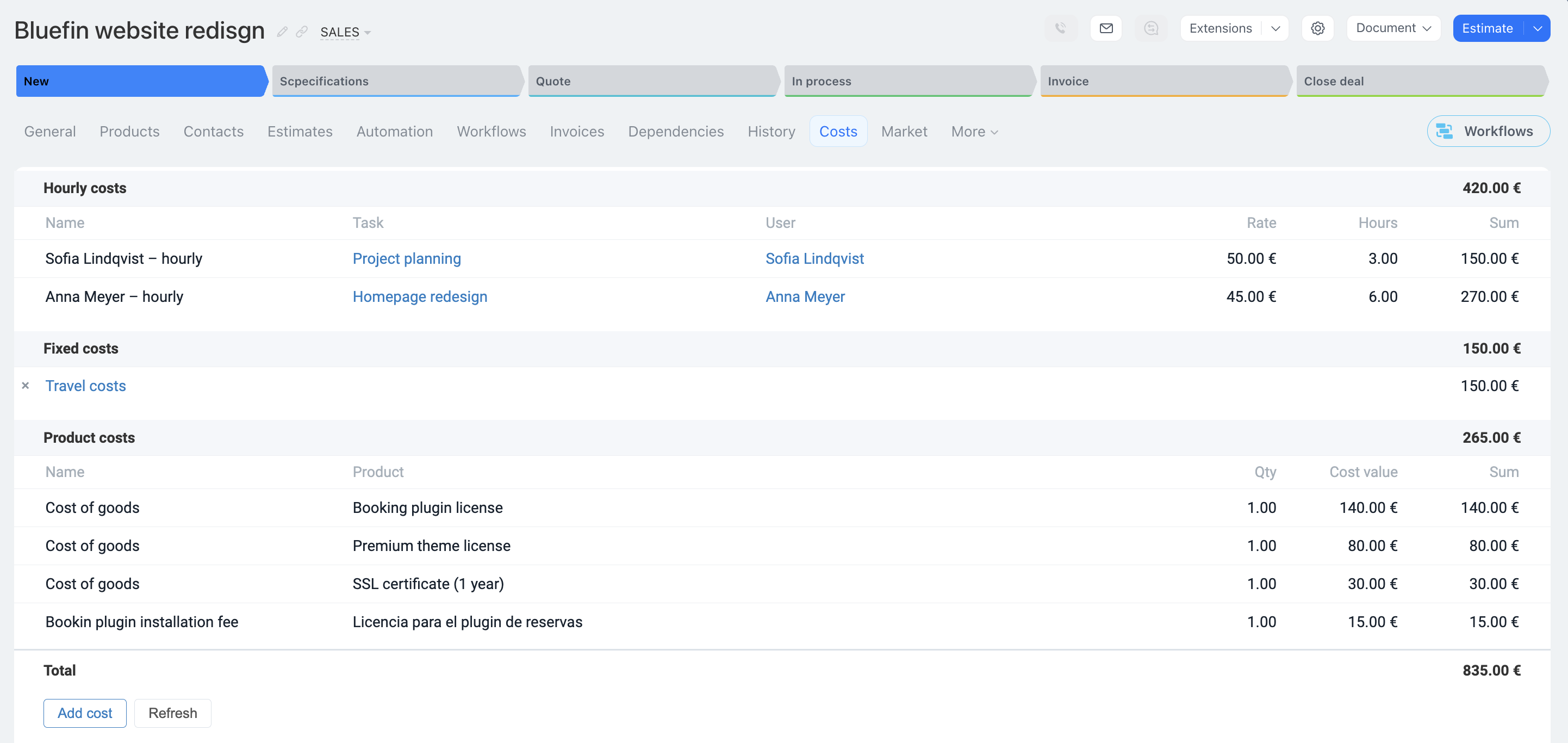
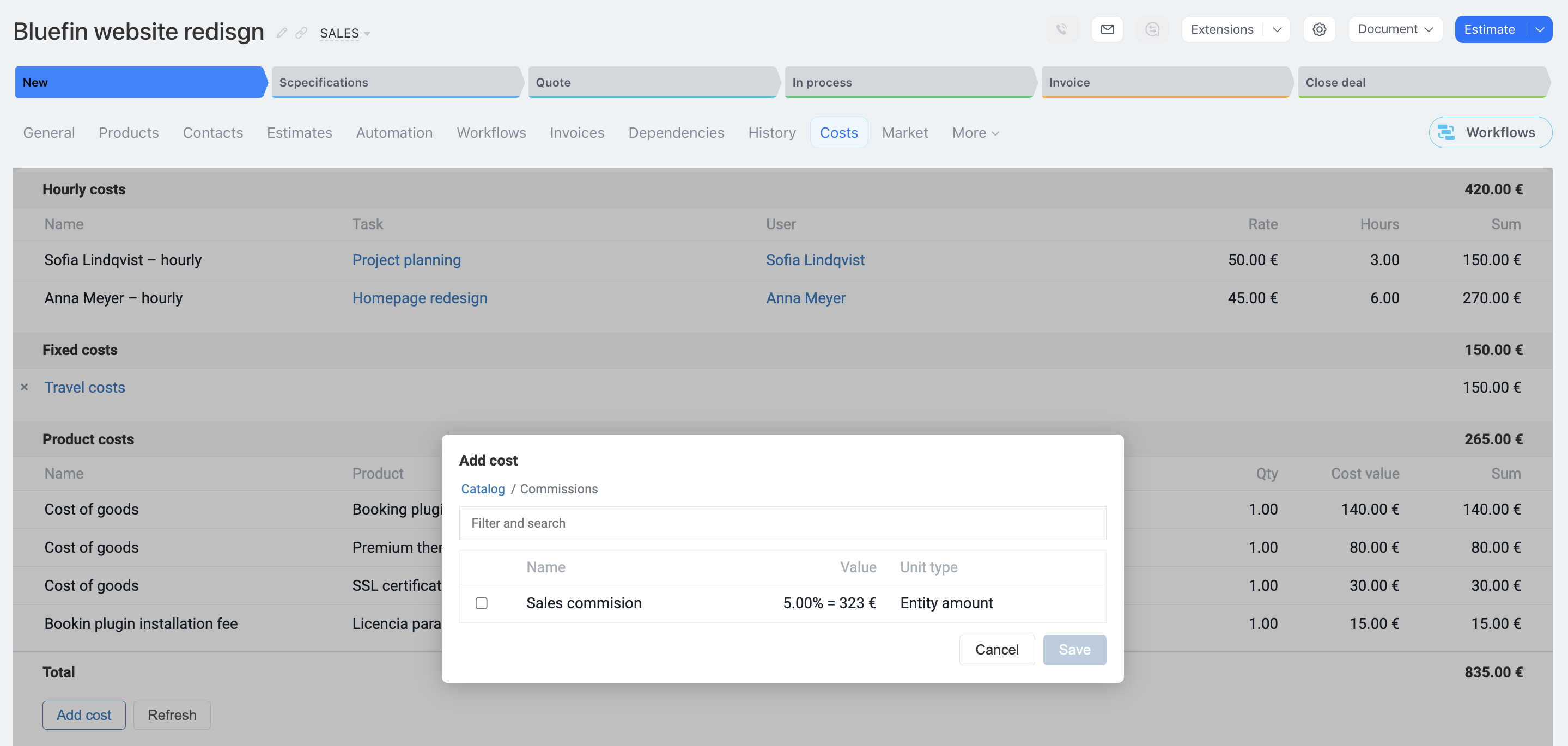
A fixed cost or expense, such as a travel cost, is shown in the Fixed costs section of the table. The amount of this cost can be changed when it is added.

A commission expressed as a percentage of the CRM item amount (for example, a deal amount) is shown in the same place and can be added without changing its value. To add a cost, select it from the catalog and check the checkbox. Press the Save button to add it.
Employee labor

Employee's time spent on tasks in Bitrix24 is automatically included in costs, whether added manually or based on time reports.

See what your team’s time really costs on every deal — not just the hours spent, but their value in money.

Learn more →
01Cost types
Employee labor
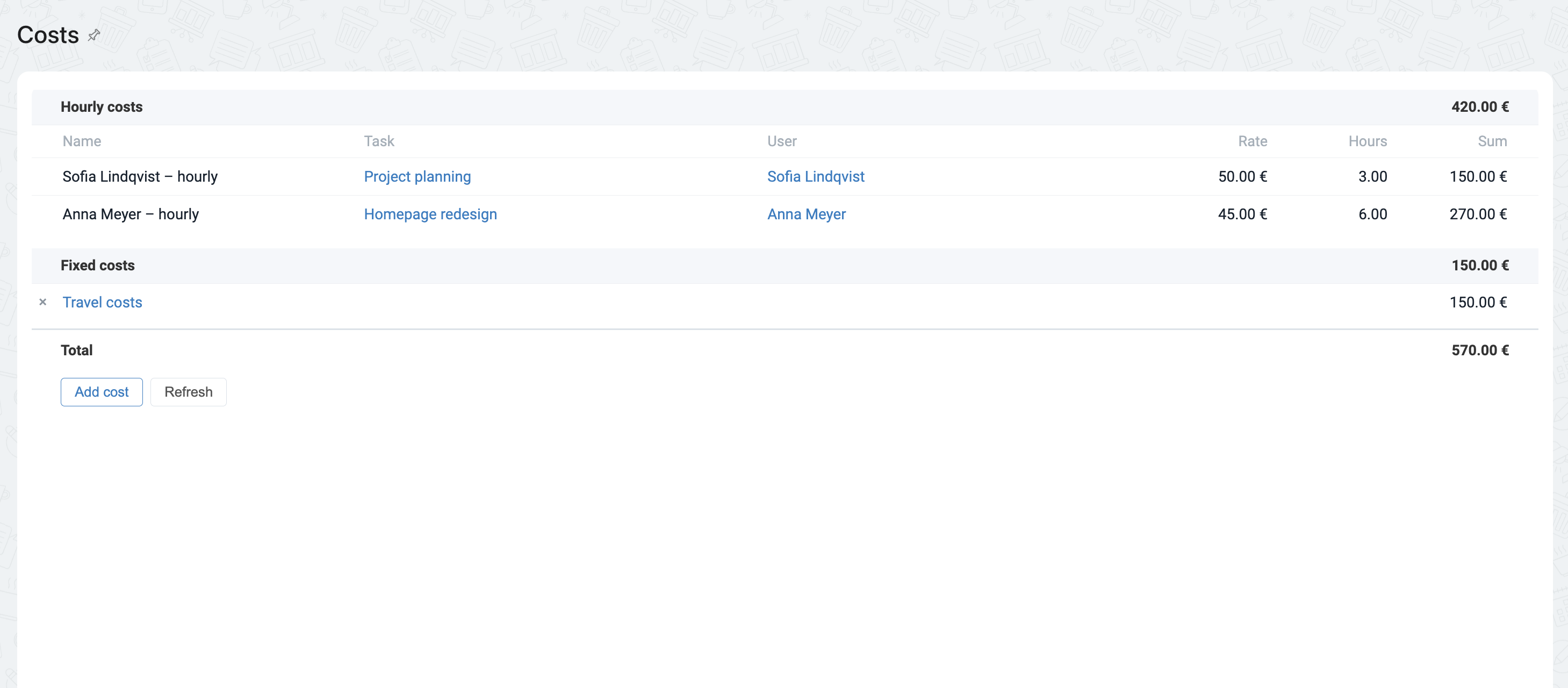
Time-based or labor costs are calculated from time reports generated by tasks assigned to the CRM item. The time an employee spends on a task is multiplied by the hourly rate set in the Costs catalog in the application.

To link a task to a CRM item, create the task from the item's timeline or assign it to the item by editing the CRM item's field.

Product costs

Add products to a deal, and their purchasing cost is automatically included in cost tracking.

Add scpecial costs to any product alongside other expenses, so the deal’s margin reflects what you actually paid — not just what you sold for.

Learn more →
01Cost types
Product costs
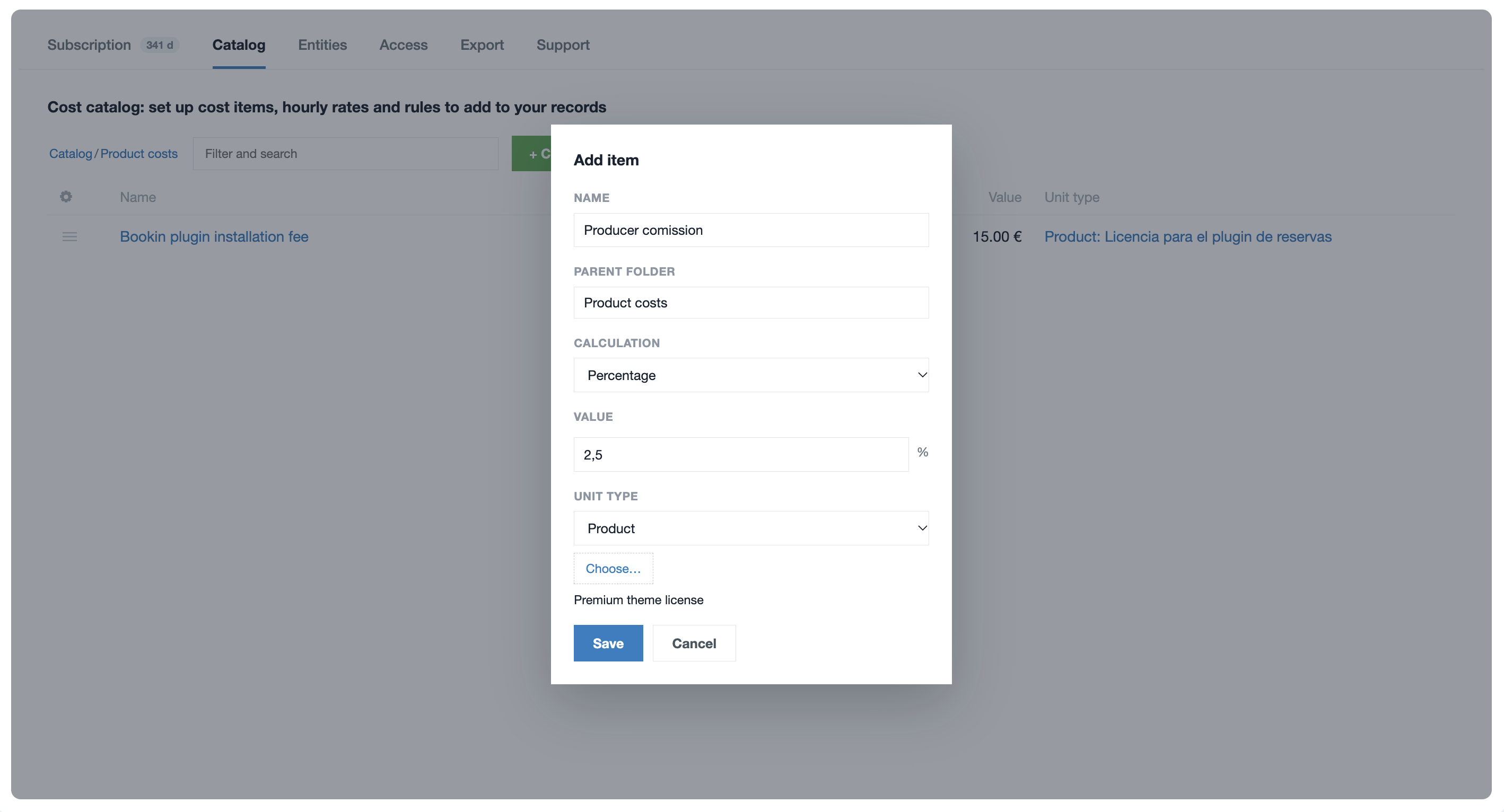
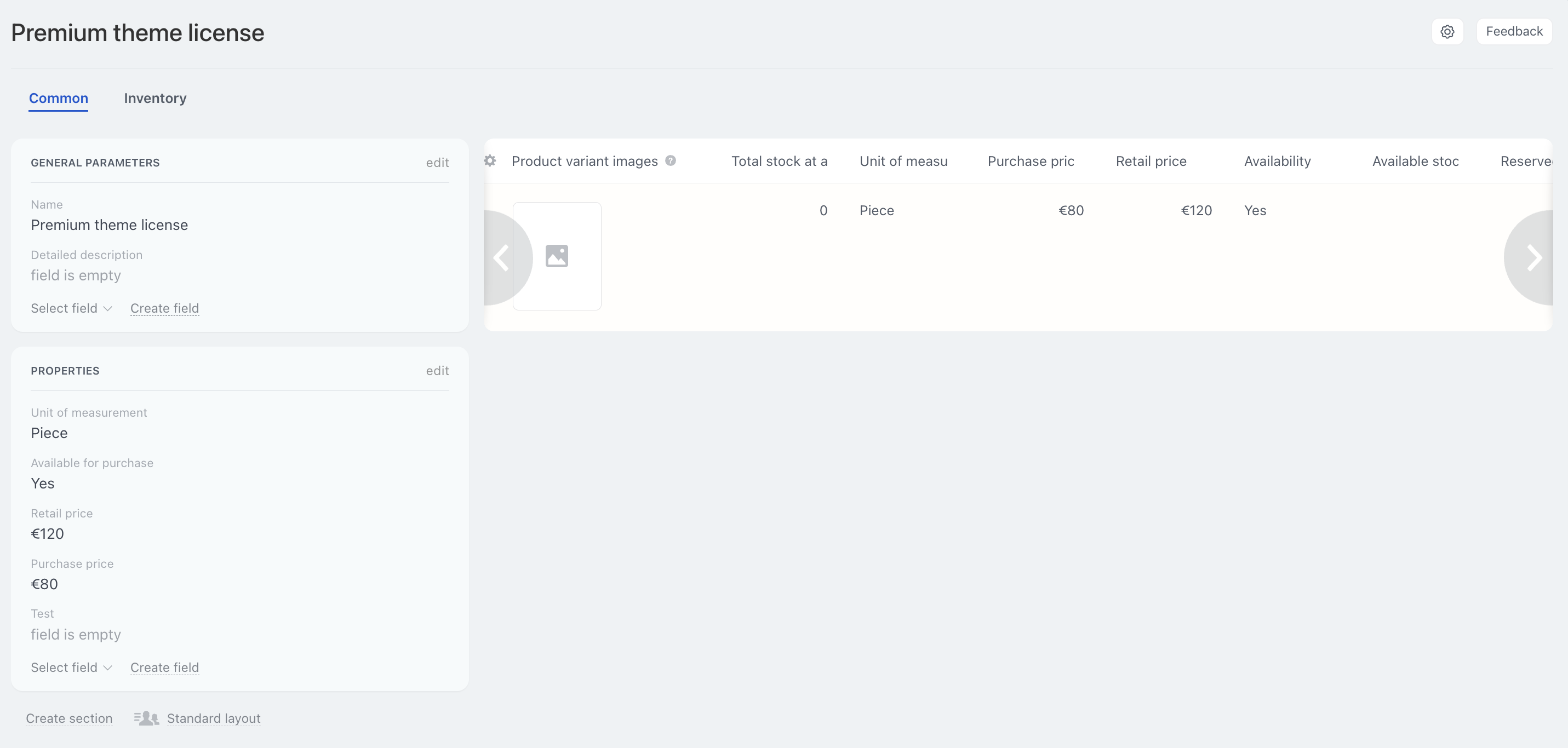
A product-based cost, such as delivery, can be a fixed amount or a percentage of the product price. This cost is assigned to a product and, when the product is added to the Products tab of a deal or any other CRM item, the product cost is automatically added to the Cost tab.

The product's purchase price is also treated as a product cost and is added to the Cost tab at the same time.
02FOR EVERY CRM-ITEM AND TASK

Cost tab for every CRM item

A Costs tab for all expense types in Deals, Leads, Invoices, and SPAs. Expenses, comissions, labor and product costs sit side by side, right next to the item’s other details — no separate spreadsheets, no switching between tools.
Learn more →
02FOR EVERY CRM-ITEM AND TASK
Cost tab for every CRM item
All costs related to a CRM item are shown in its Costs tab. The Cost tab can be enabled for any CRM item except a contact or company. To enable it, open the Costs & expenses app in Bitrix24 and select the specific item in the Entities tab.

Any cost from the catalog can be added to the Cost table in a CRM item by clicking the Add costs button. It can be deleted by clicking the cross in the leftmost column of the table. Some costs, such as product-based and time-based costs, are added automatically when a product is added to the CRM item or a task is assigned to it. 

Сosts catalog for simple cost reuse

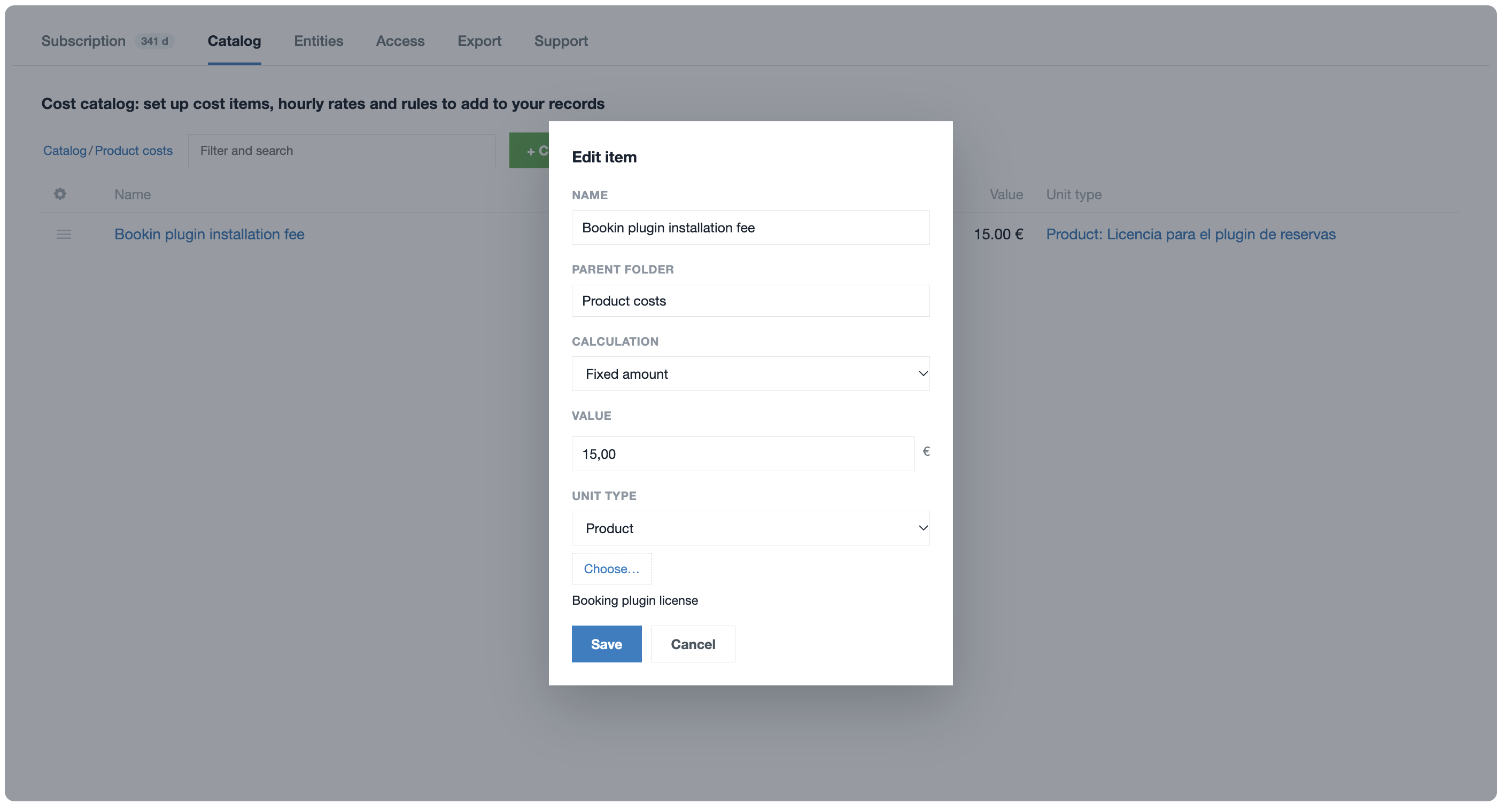
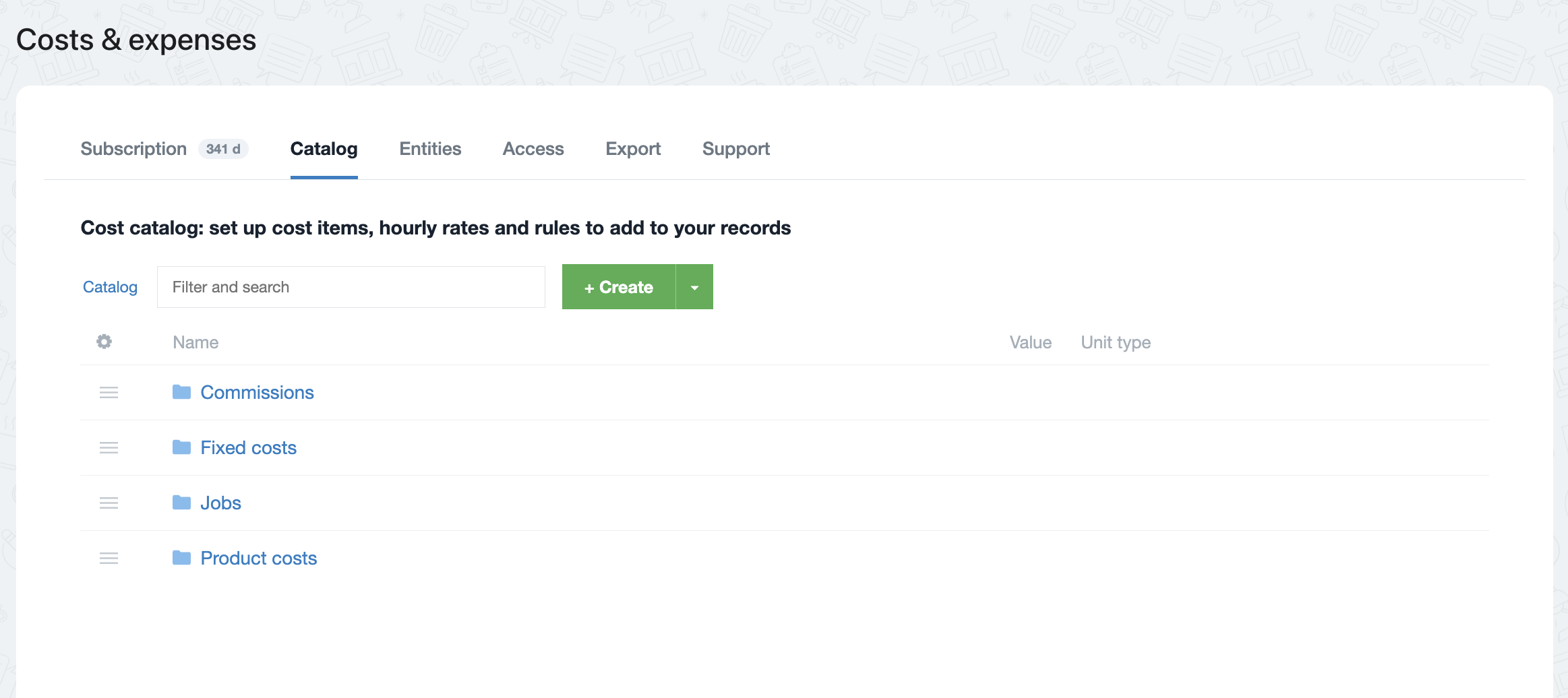
The Costs & Expenses application includes a dedicated catalog, accessible via the Catalog tab, where all cost entries are managed. You can organize expenses into folders according to their category and define costs using one of three calculation methods: a fixed amount, a percentage, or an hourly rate.
Learn more →
02FOR EVERY CRM-ITEM AND TASK
Сosts catalog for simple cost reuse
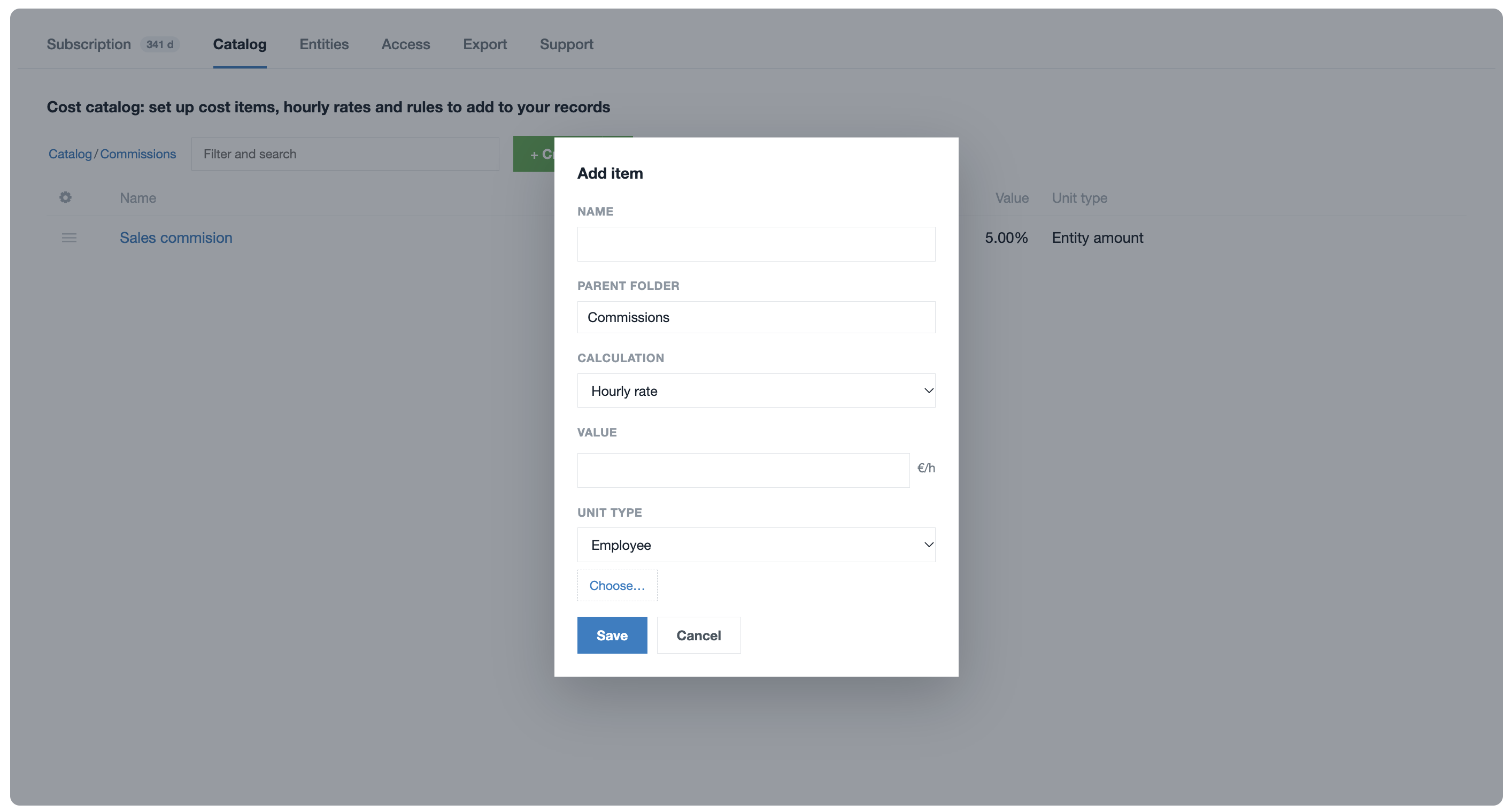
All costs are added from the costs catalog, which is available in the Catalog tab of the Costs & expenses application. In the catalog, you can create folders for different types of costs and expenses, and create three types of costs: fixed amount, percentage, and hourly rate.

A fixed amount (for example, a travel cost) can be a Fixed cost that you can add to any CRM item table, or it can be assigned to a product and added automatically when that product is added to a CRM item. The amount of the Fixed cost is stored in the catalog but can be edited when it is added to a CRM item.

A percentage-based cost (for example, a sales commission) can be assigned to a CRM item and calculated as a percentage of its amount. When assigned to a product, it is calculated as a percentage of the product's price. An hourly rate must be assigned to a user selected from the users list. 

Costs in Tasks & Projects

Tasks an projects have a costs tab for direct expenses and time reports which are automatically converted into costs. Track what each task or project costs, and link it to a deal so those costs count toward the deal’s total.
Learn more →
02FOR EVERY CRM-ITEM AND TASK
Costs in Tasks & Projects
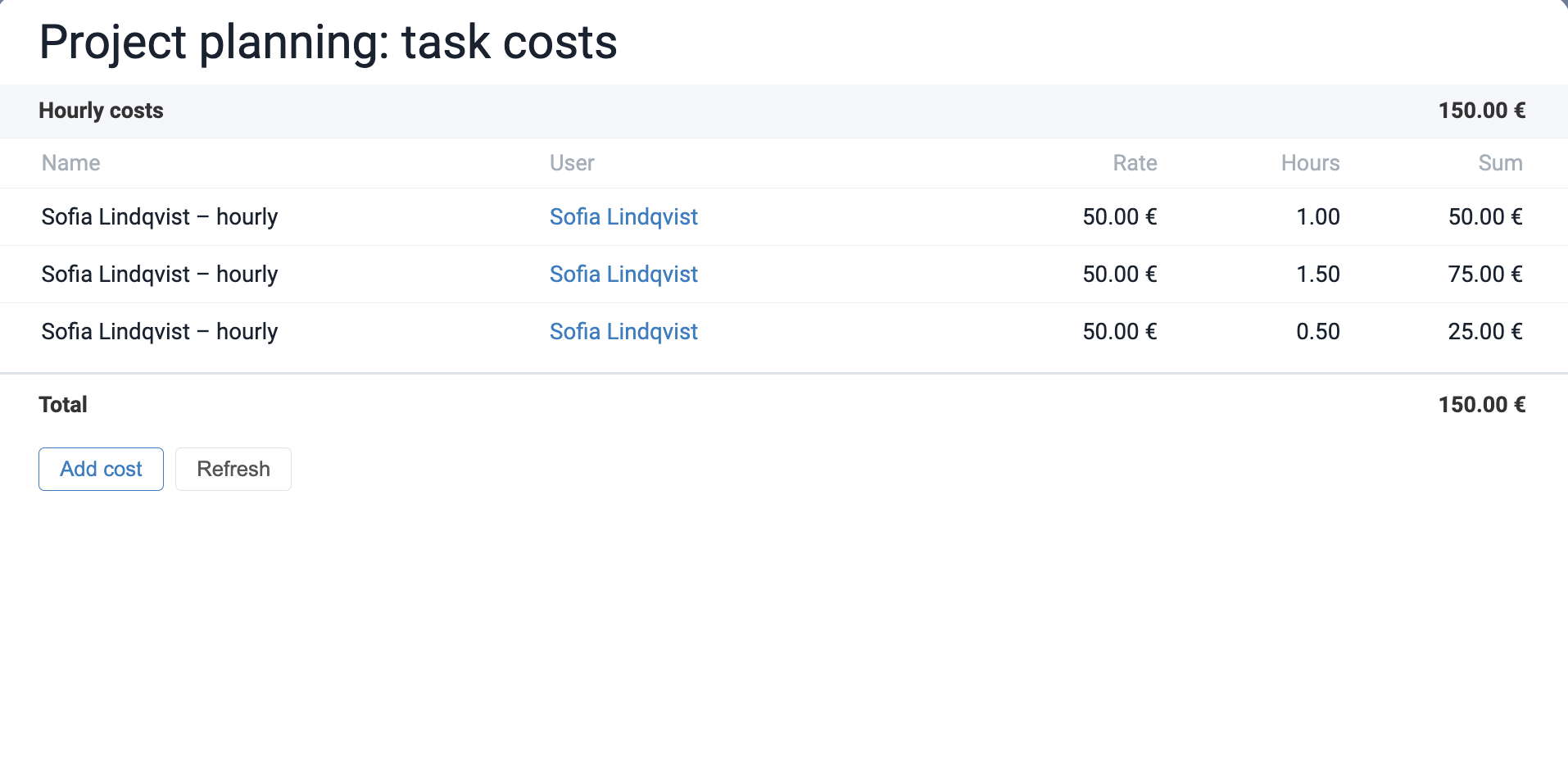
A task has a Cost tab like a CRM item, but because tasks have no amount or products, only fixed and time-based costs can be added there. Commissions and product-based costs are not available for tasks. The task's Cost tab can be opened from the left panel; the total cost is displayed next to it.

Time-based costs are generated from the task's time report (automatically or manually) and the user's hourly rate set in the costs catalog.

A project has the same Cost tab as a task, but it is located under Apps -> Costs. The costs of all project tasks are summarized in the tab automatically, and an additional fixed cost can be added there. 
03Cost automation

Add costs automatically from worklfow (PRO)

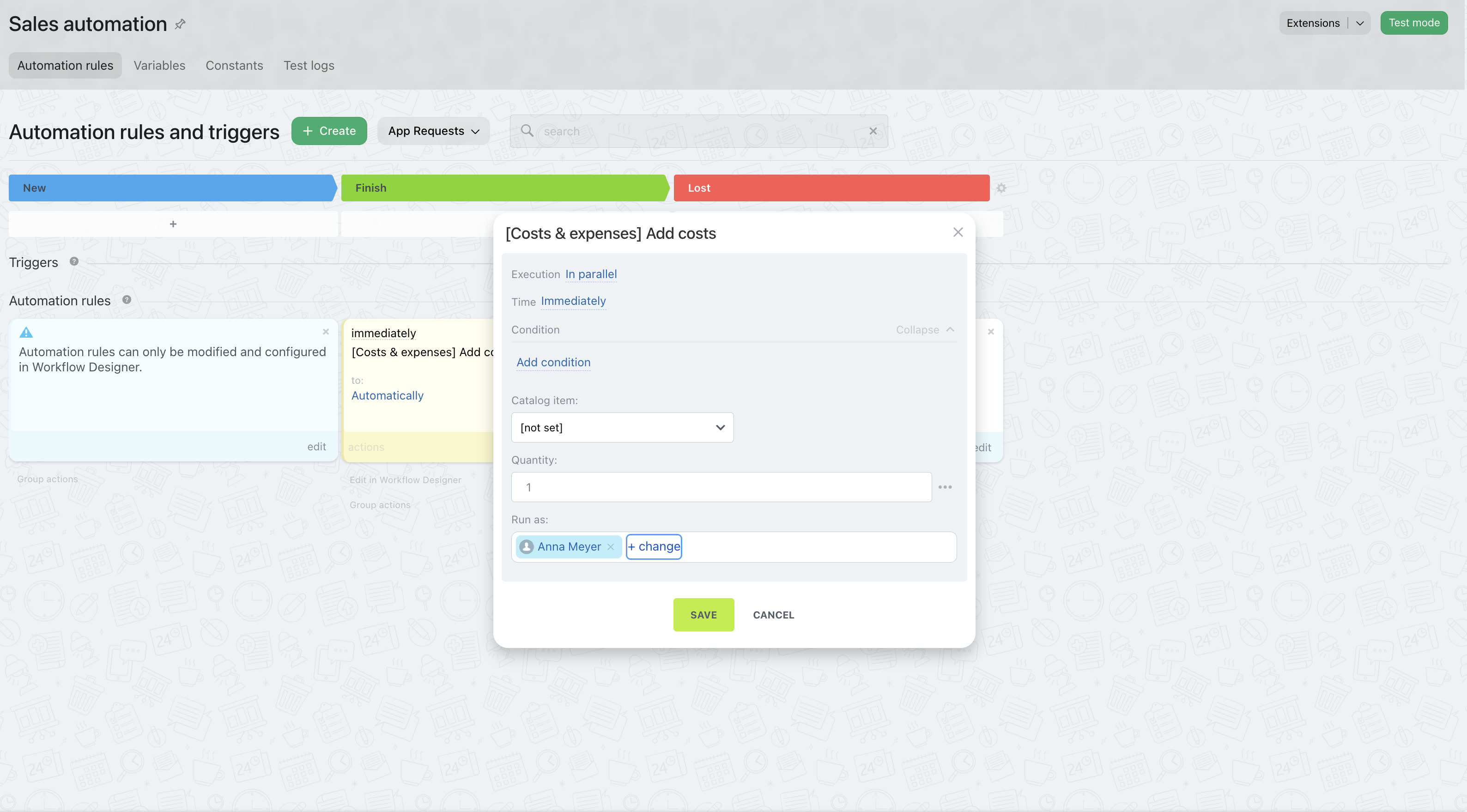
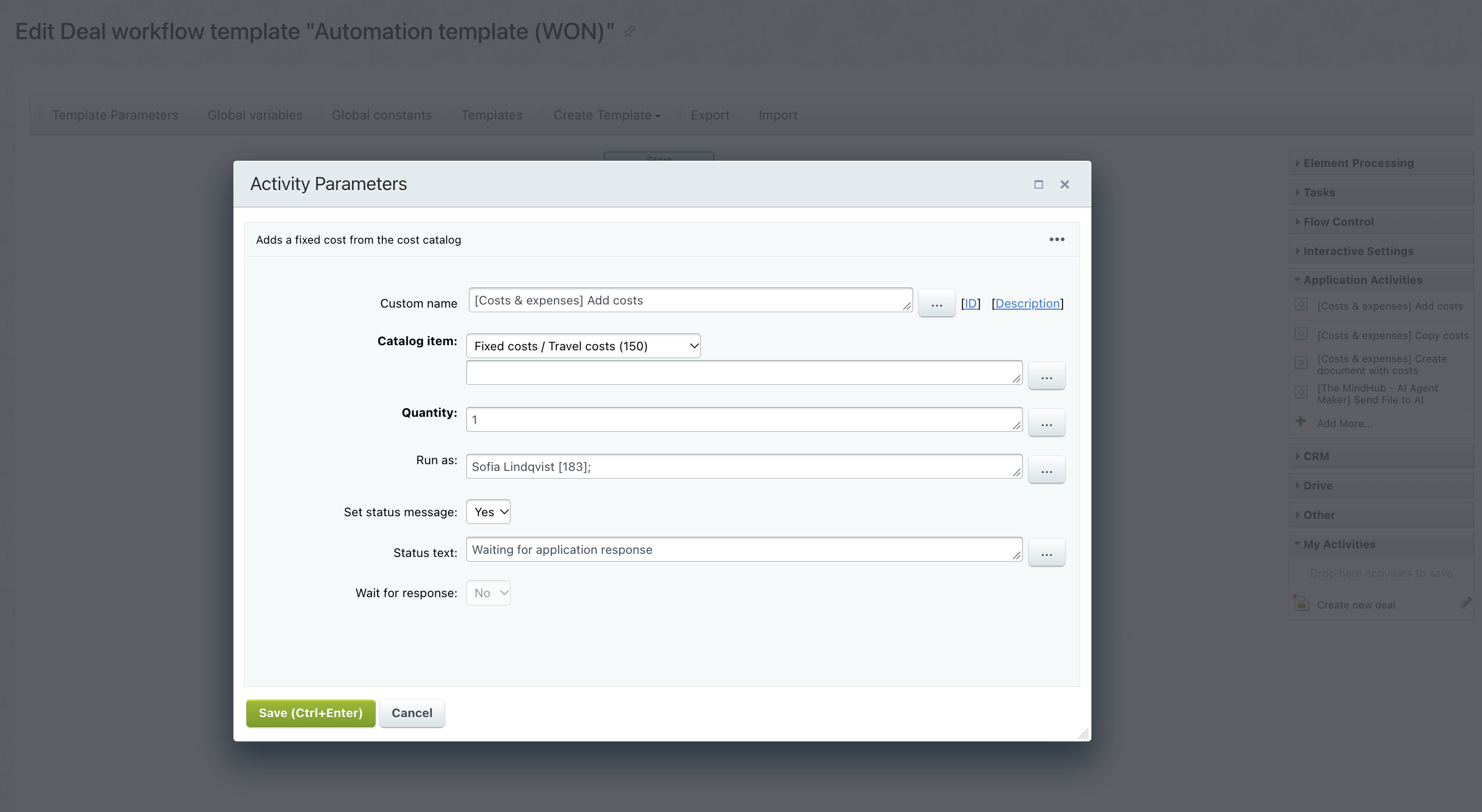
If you want to add fixed or calculated cost automatically from the workflow or pipeline automation, you can use "[Costs & Expenses] Add costs" robot or automation.
Learn more →
03Cost automation
Add costs automatically from worklfow (PRO)
You can add costs to a CRM item within a workflow or pipeline automation using a robot or automation in the workflow editor. This feature is available on the PRO app plan only and can be used, for example, to add a delivery cost based on the location.

You can find this robot or automation under the name “[Costs & Expenses] Add costs” in the robots list or the automation list in the “Application activities” section. To configure it, select a cost from the catalog and specify the quantity to add.

Copy cost table between crm-items (PRO)

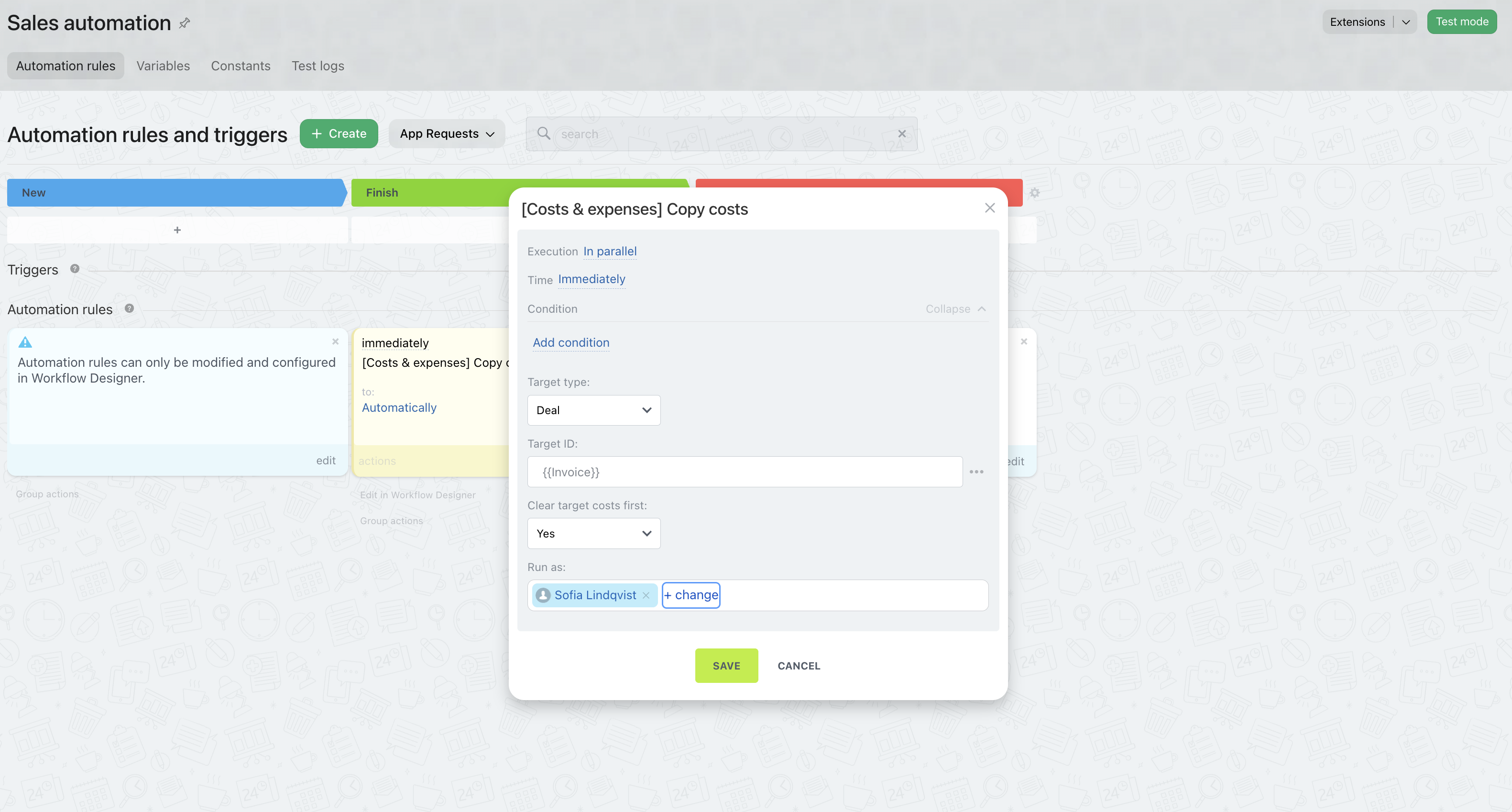
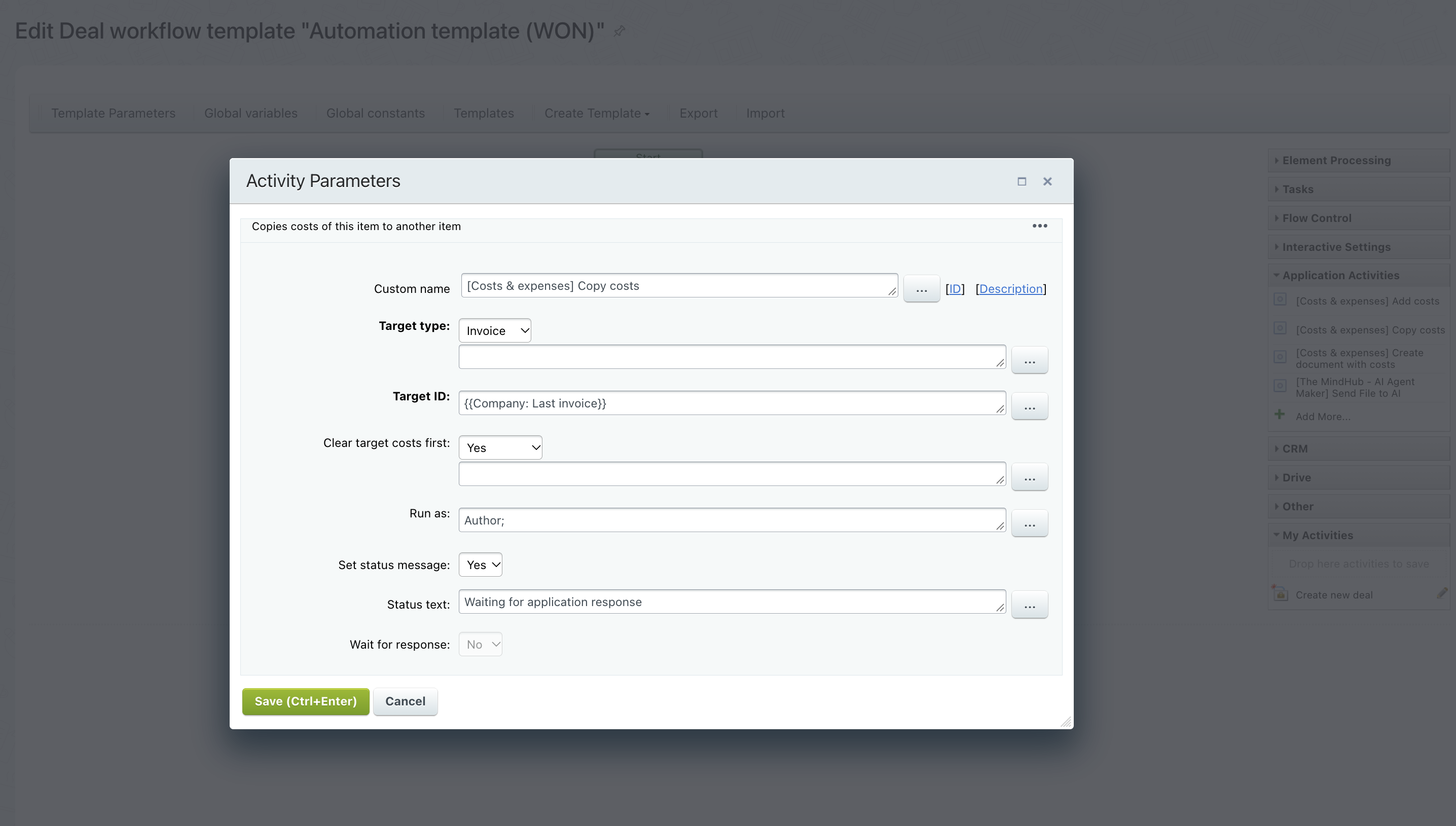
Since Bitrix24 stores costs separately, they are not copied automatically when a CRM item is duplicated or created from another item. To transfer them, use the “[Costs & Expenses] Copy costs” robot.
Learn more →
03Cost automation
Product cost price included
Because costs are external data in Bitrix24, they cannot be copied when you copy a CRM item or create another CRM item based on it — for example, an invoice based on a deal.

However, you can copy the cost table using the “[Costs & Expenses] Copy costs” robot. Please note that this feature is available on the PRO app plan only.

You can find this robot or automation in the robots list or the automation list in the “Application activities” section. To configure it, select a target CRM item type and ID. You can also specify whether the existing CRM item's cost table will be cleared.

Print costs table to the documents (PRO)

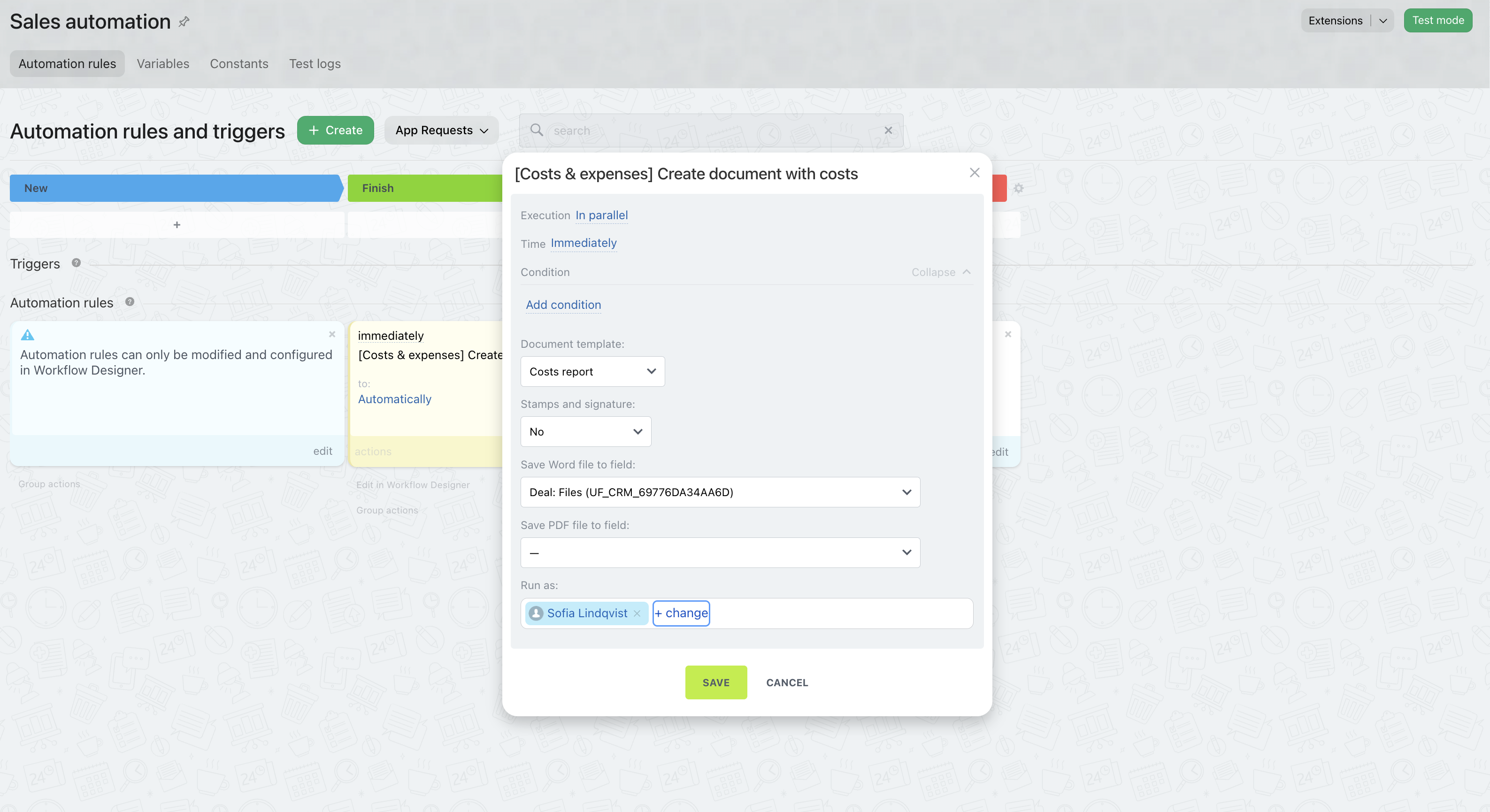
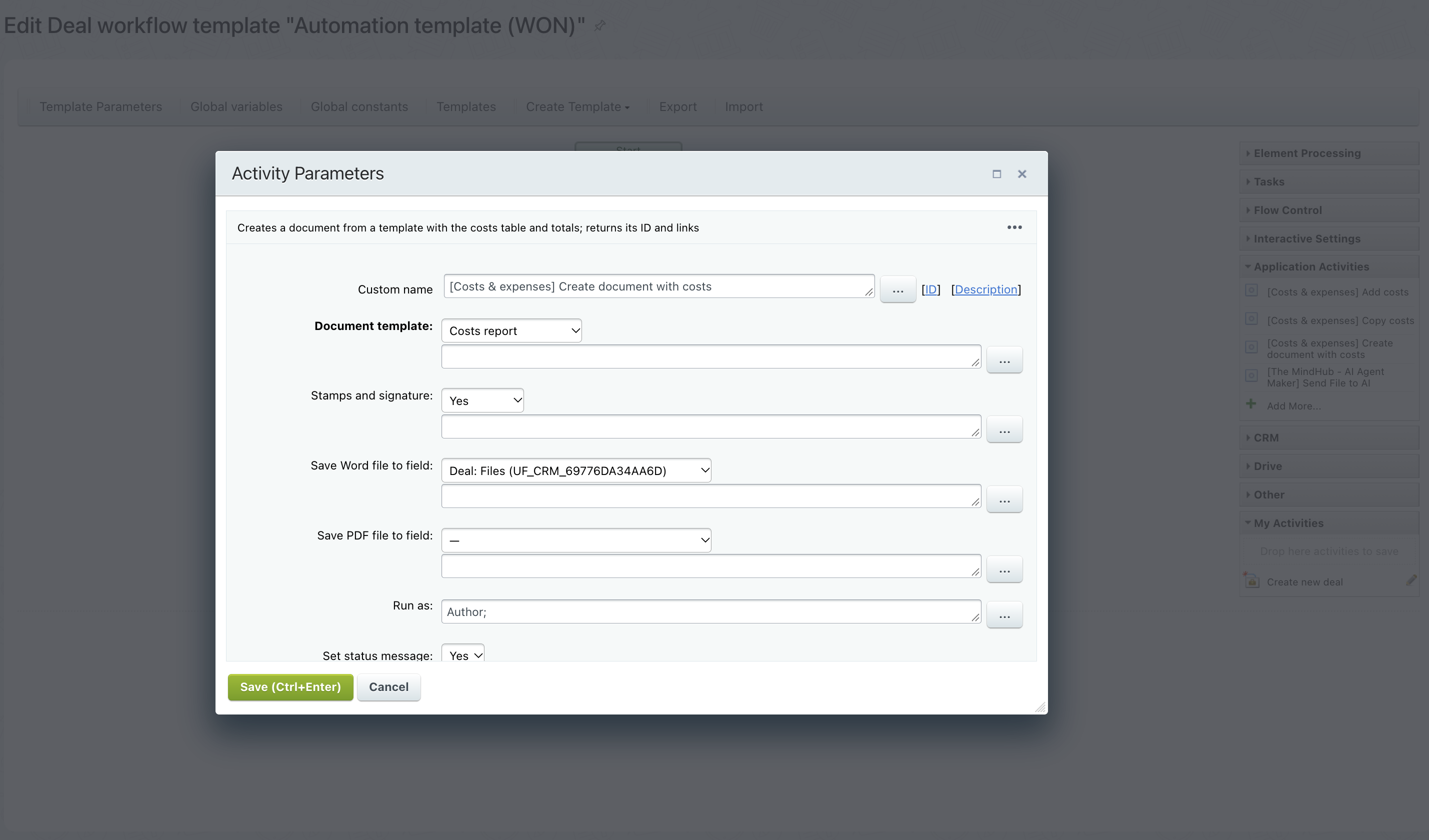
You can automatically create a documents with cost table and save them to .docx or .pdf with "[Costs & Expenses] Create documents with costs” robot or activity.
Learn more →
03Cost automation
Autoprint costs table to the documents (PRO)
You can add a cost table to a document generator template using fields such as {CostsName}, {CostsType}, {CostsRate}, and {CostsSum} (all of these are available in table mode), as well as {CostsTotal}. Documents containing these fields are normally created manually using the Documents button.

Unfortunately, due to Bitrix24-specific limitations, the “Document create” activity or robot can normally process only the {CostsTotal} field. If you need to create a document containing a cost table automatically from a workflow or pipeline automation, you can use the “[Costs & Expenses] Create documents with costs” robot or activity.

You can find this robot or automation in the robots list or the automation list in the “Application activities” section. To configure it, select a template and the fields in which to save the PDF and DOC versions of the created document.

IMPORTANT: These fields must have the File type (not multiple) and be related to the CRM item type (for example, Deal) from which you start the workflow.
04Analytics

Every cost
One clear total

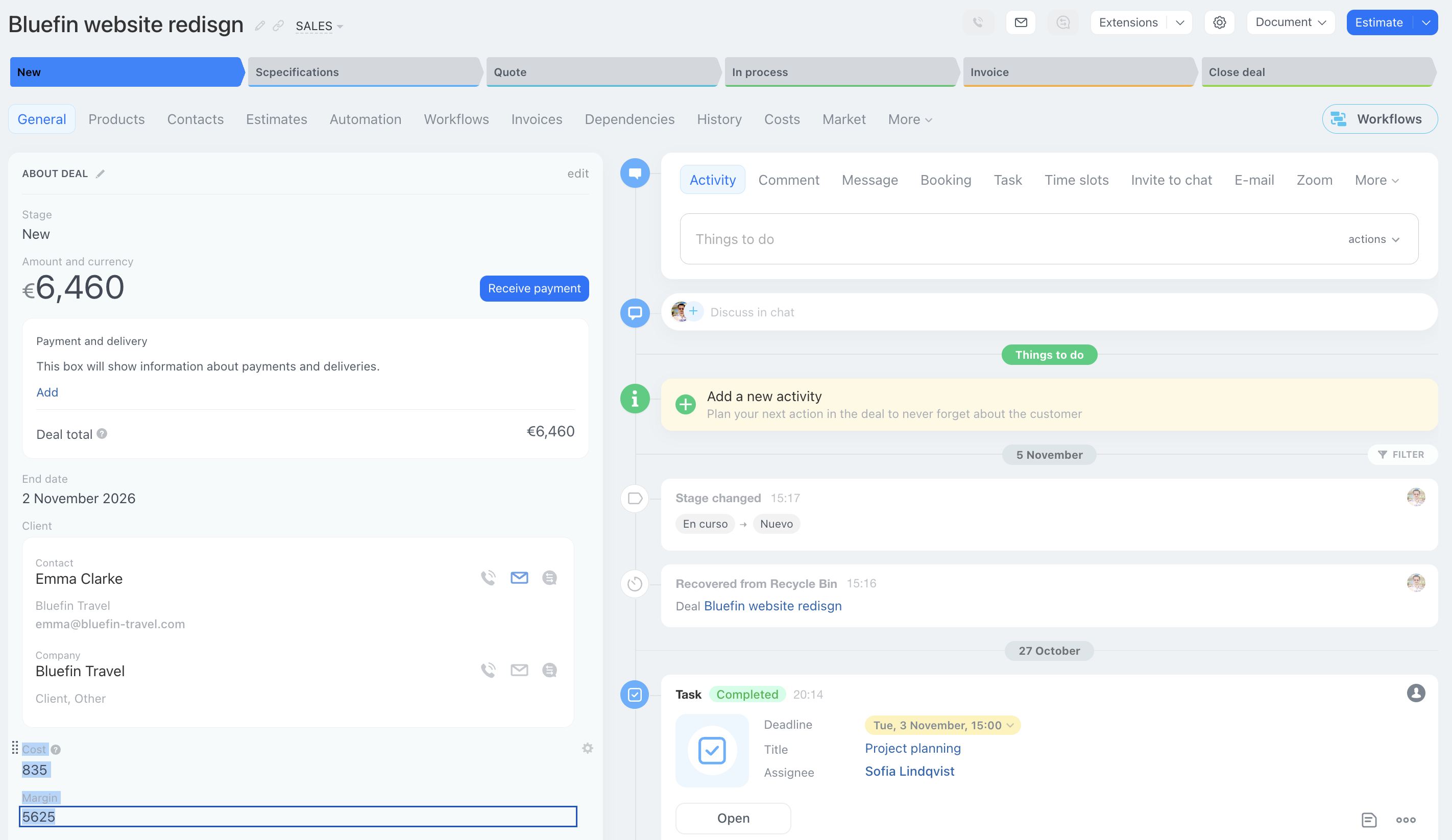
Costs summary field for every deal and lead — the starting point to calculate margin and profit.
Learm more
04Analytics
Every cost. One clear total.
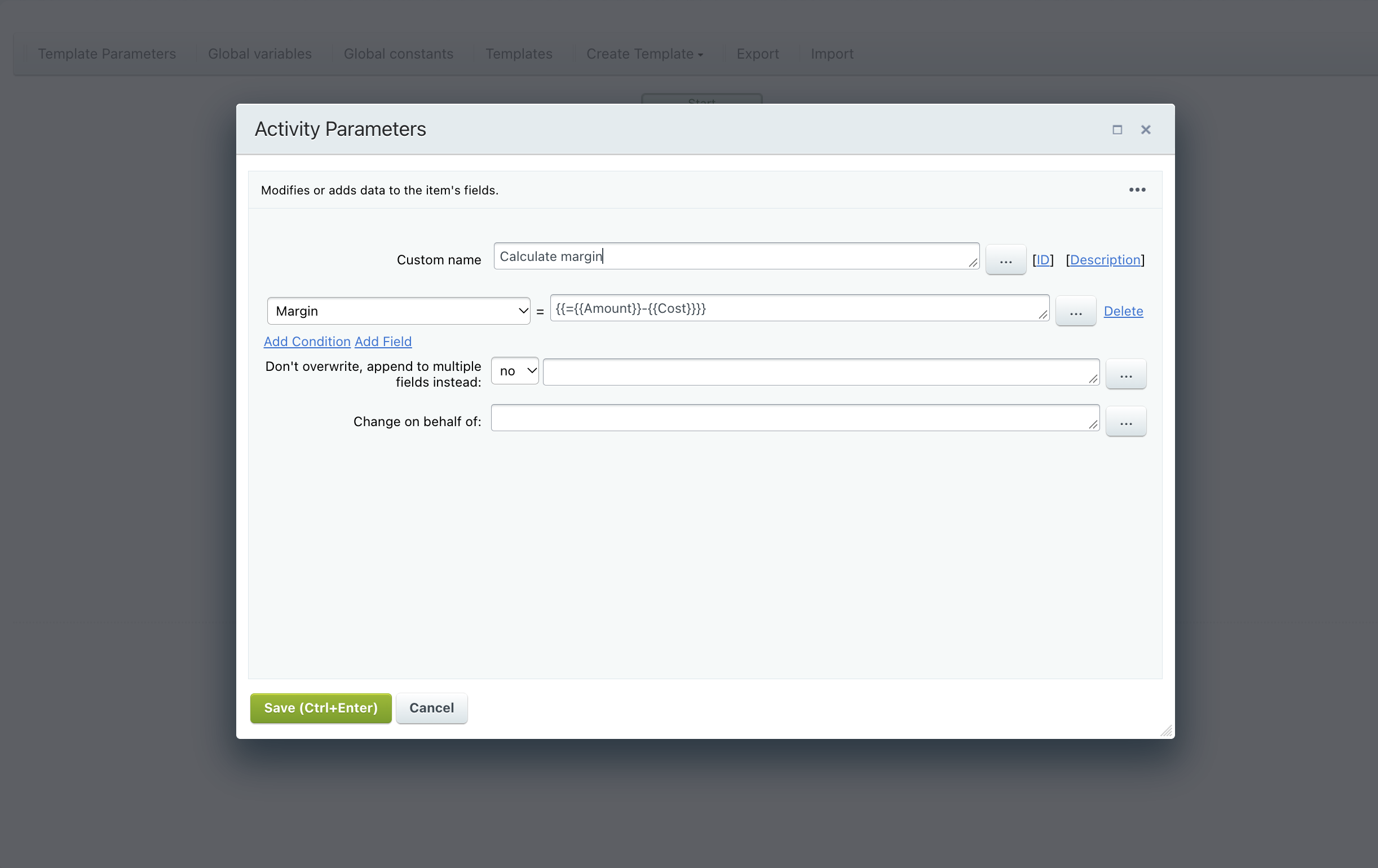
All costs from the CRM item or Task costs table are summarized in the user's Cost field (code COST_SUMMARY). You can use it to calculate the margin (CRM item amount - cost) and profitability ((amount - cost)/amount).

Export to XLS

Export all costs to a spreadsheet for accounting or your own analysis.
Learn more →
04Analytics
Export to XLS
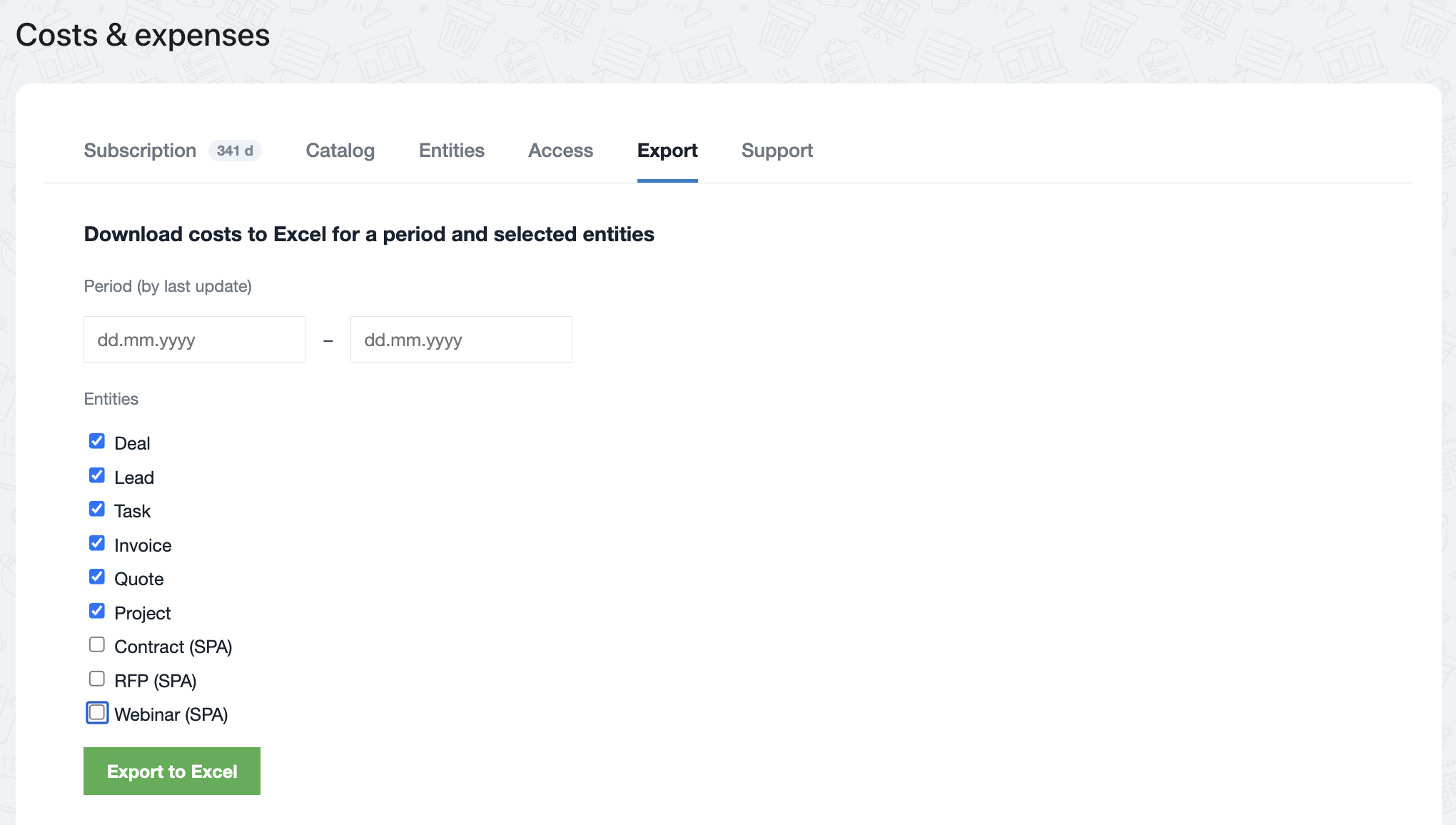
Costs from all cost tables in Bitrix24 can be exported in XLS format. You can select the type of entity to which the exported costs are related. The date picker allows you to select the period during which these costs were added to CRM items or tasks.

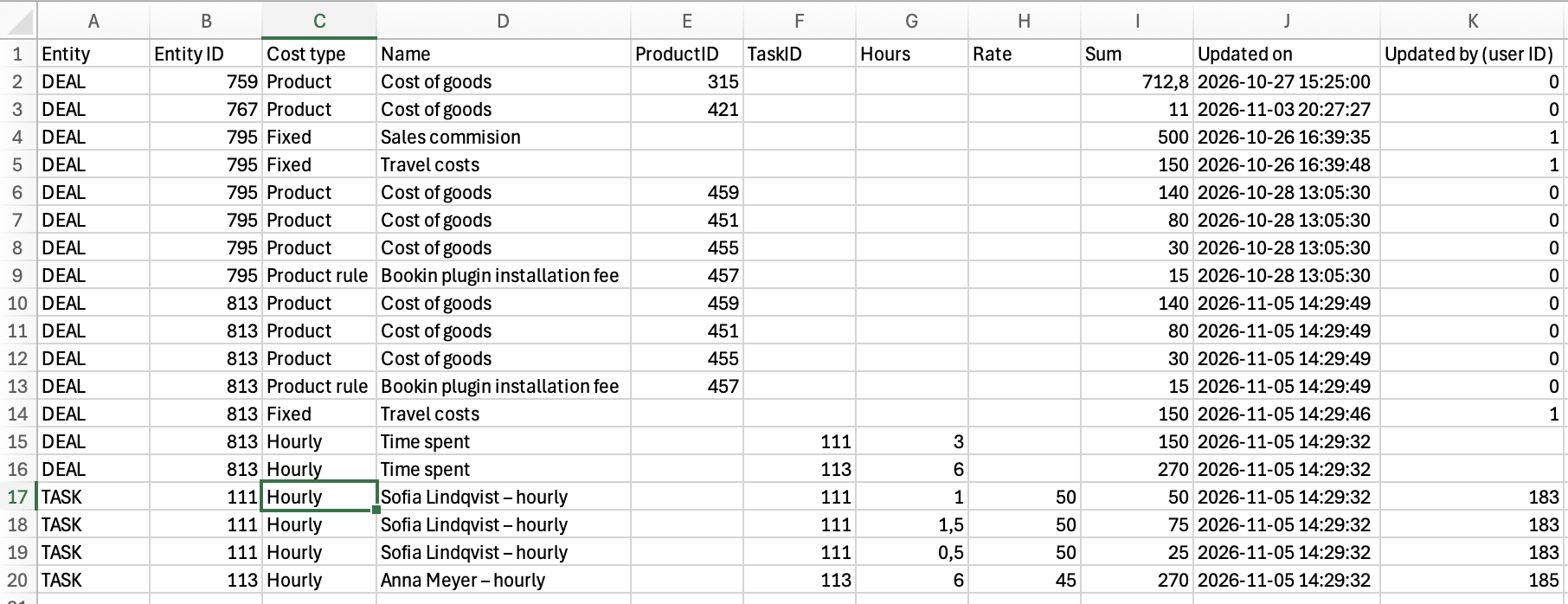
The Entity and Entity ID columns contain the type and ID of the CRM entity or task. ProductID and TaskID contain the IDs of related products or tasks whose costs are added to the CRM item.

Please note that tasks assigned to a CRM item appear twice in the XLS sheet: first as a cost with the type “Hourly” and the name “Time spent,” related to the CRM item (such as a deal); and second as a cost with Entity “Task” and the task's actual name. To avoid duplication, do not use a simple sum in the XLS sheet; use a pivot table with filtering instead.

Reports in BI Builder (PRO)

Build cost and profitability reports in Bitrix24 BI Builder.
Learn more →
04Analytics
Reports in BI Builder
You can use the cost table to create advanced reports in Bitrix24 BI Builder. Please note that this option is available on the PRO plan only. Follow these steps:
  1. Open the BI Builder page.
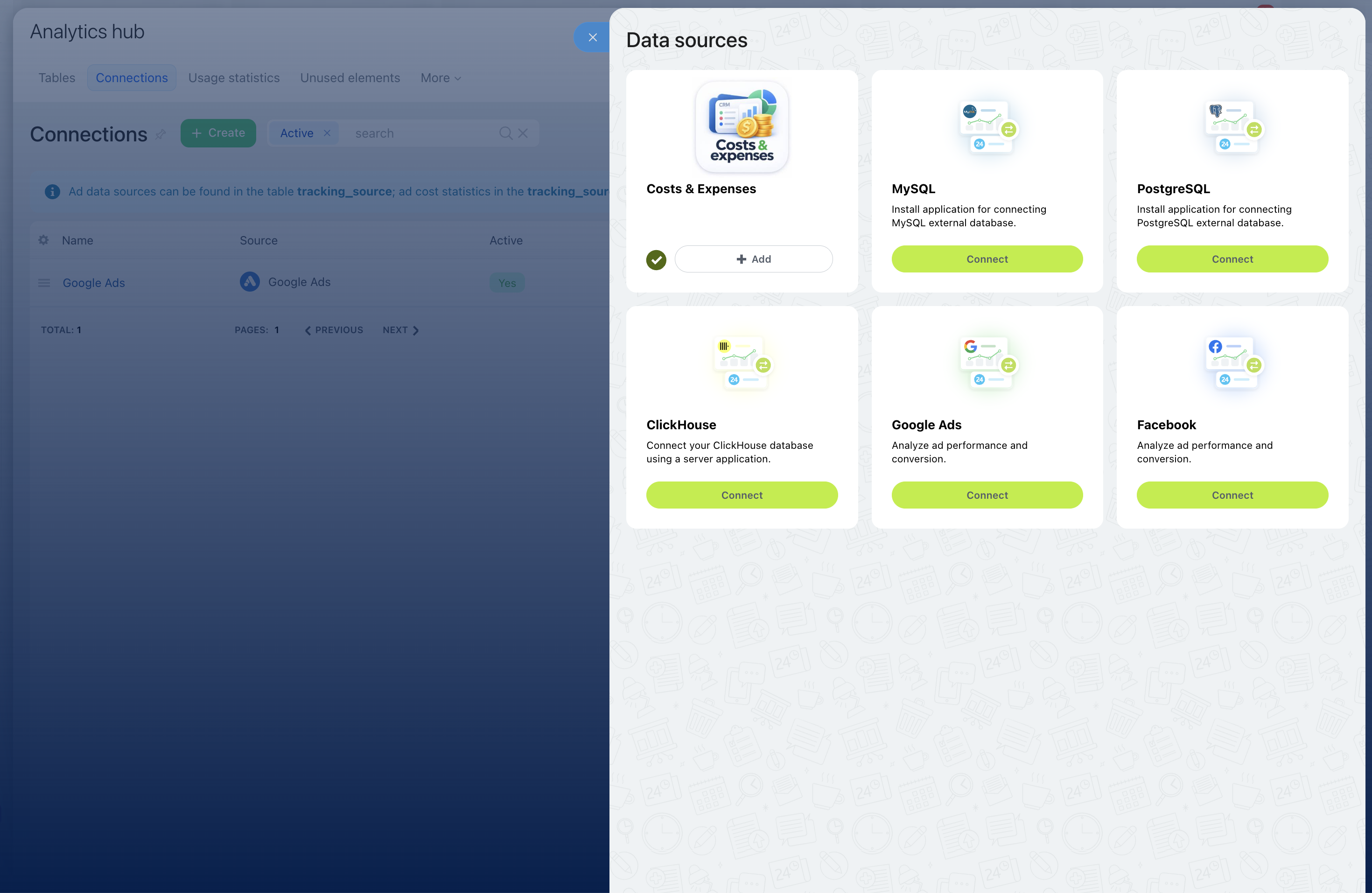
  2. Open Analytics hub - Connections.
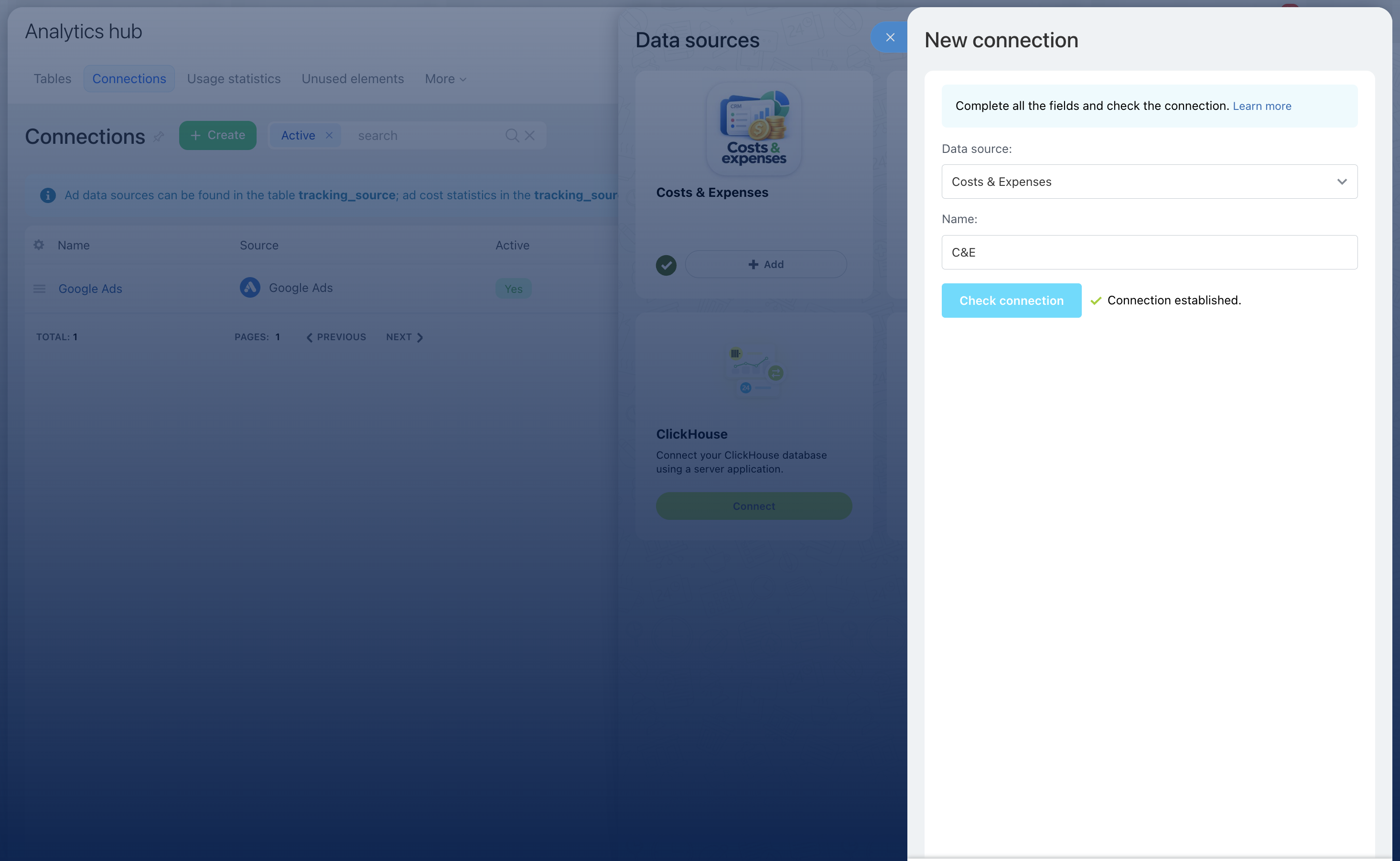
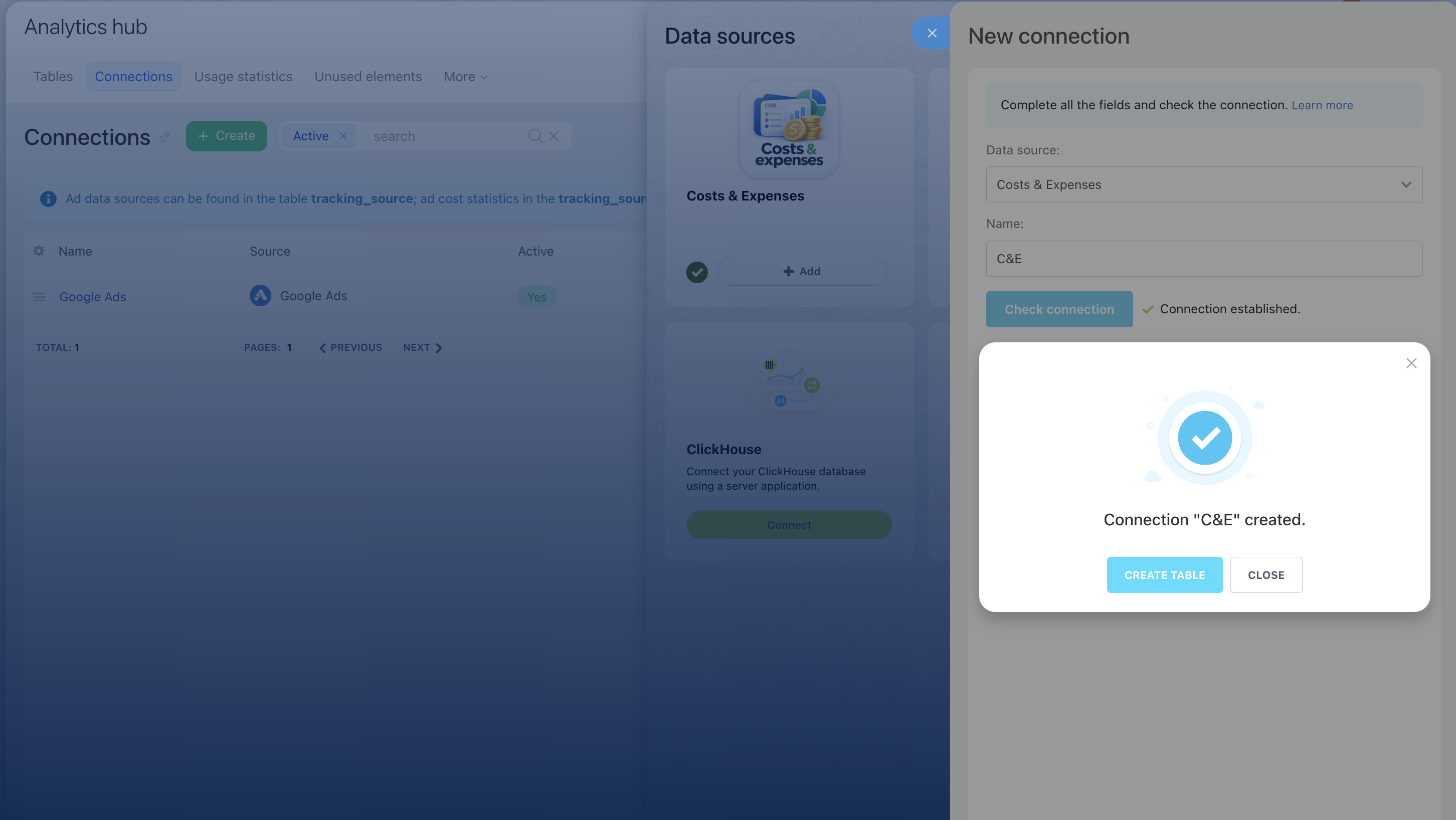
  3. Click Create, then click “Add” under Costs & Expenses in the Data sources window. Enter the connection name, then click Create again.
  4. Once the connection has been created, click Select in the Table field, type “Costs,” and click Next.
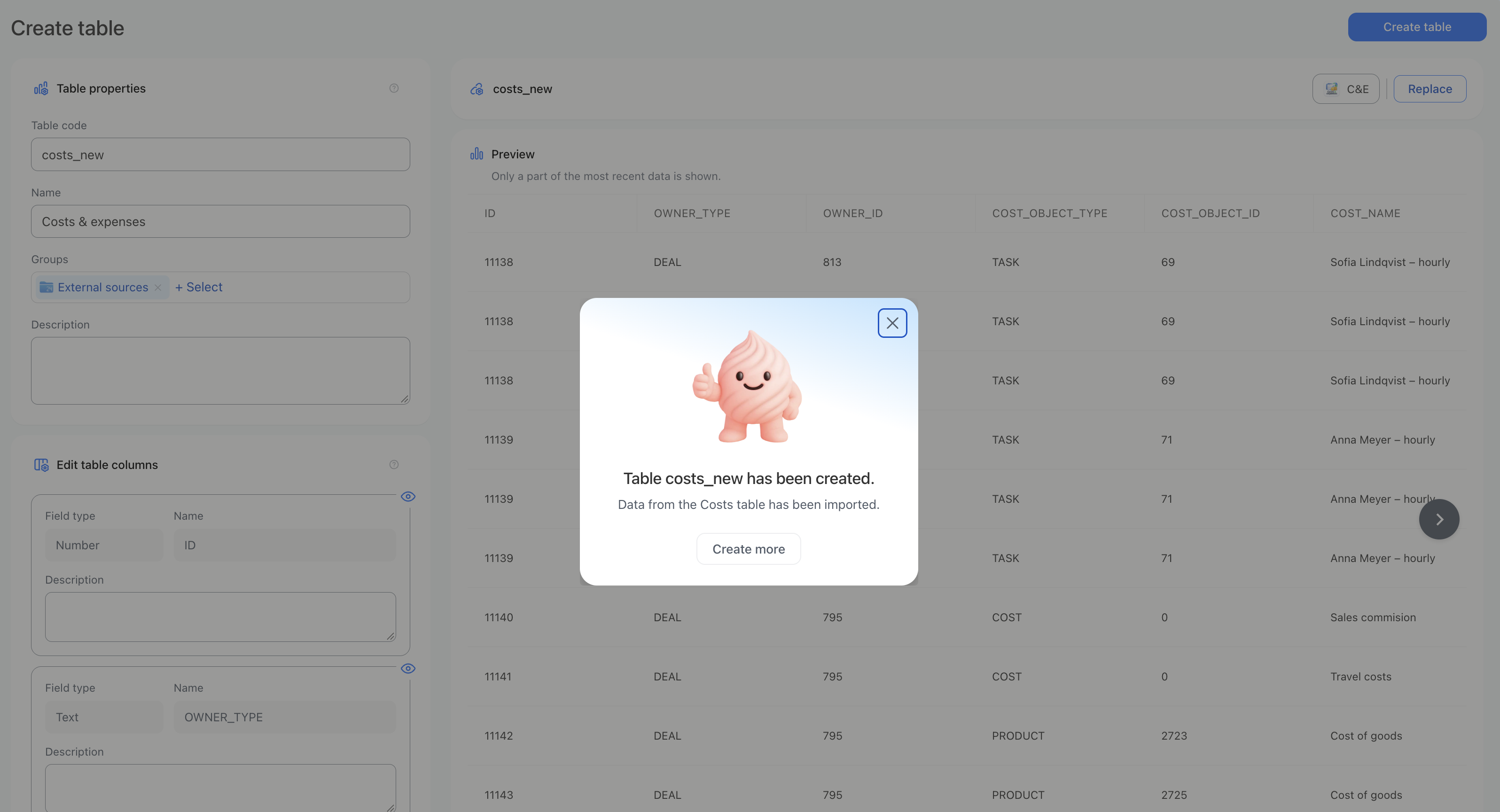
  5. In the Create table window, enter the table code (for example, “costs”) and the table name, then click Create table. The connection has now been created.
  6. You can now create a dataset by selecting the “Trino” database, the “bitrix24” schema, and the table name you created in step 5. 
Pricing

Cost that fits your needs

Application is availble with BASE and PRO plans with monthly or annual payment
BASE PLANMain things you need
€ 9,90 / month20% dicount for annual payment

Start with clear cost tracking

For teams that want to bring all their costs together in Bitrix24.
  • 15 days free trial
  • Costs table in CRM-items
  • Costs calatog
  • Costs table in tasks & projects
  • Export to the xls
INSTALL APP
PRO PLANBase plan + BI builder and robots
€ 29,90  / month20% dicount for annual payment

See the bigger cost picture

For big teams with more financial analysis needs.
  • 15 days free trial
  • Costs table in CRM-items
  • Costs calatog
  • Costs table in tasks & projects
  • Export to the xls
  • Costs in BI builder
  • Robotic automations and workflows
INSTALL APP
VAT can be removed for EU companies with entering VAT ID during the payment
Support

We’re ready to help

Questions about setup, features or plans? Pick the channel that suits you.

Email

For detailed questions, setup help and anything that needs screenshots or files.
apps@pamteh.si →

WhatsApp

For quick questions — message us in the app you already use every day.
@pamteh.si →

Tickets

Report an issue or request a feature, and follow its status until it’s resolved.
Write a message →
FAQ

All the things explained

Looking for Bitrix24 costs or Bitrix24 expenses — is this the right app?

Yes. The app adds expense tracking to Bitrix24 sales, bringing together direct costs, employee labor costs, and product costs. Each deal gets a complete cost breakdown for margin and profit analysis.

Which CRM items support expense tracking?

Deals, leads, invoices and smart processes each get a Costs tab for all expense types. Tasks and projects get a Costs tab for direct expenses as well.

How is employee time converted into costs?

Work from tasks linked to a CRM item is included in its costs automatically — whether the time is added manually or comes from Bitrix24 time reports.

When are product costs added?

As soon as products are added to a deal, their cost price is automatically included in that deal’s cost tracking.

Where can I see totals and export costs?

Every CRM item shows its total costs. For deeper analysis, build reports in Bitrix24 BI Builder or export all costs to XLS.

How will BASE and PRO differ?

BASE is planned for clear, everyday cost tracking; PRO for teams that need deeper work with data and advanced analysis. Final features and pricing will be confirmed at launch.

Do I need to change how my team works in Bitrix24?

No. Costs are recorded right where your team already works: a Costs tab appears in deals, leads, invoices and smart processes, as well as in tasks and projects. Labor costs come from the linked tasks and time reports your team already keeps, and product costs come from the products added to a deal — nobody has to fill in a separate spreadsheet. Managers get a complete cost picture for every deal, and you can take it further with reports in Bitrix24 BI Builder or an XLS export whenever you need a deeper look.